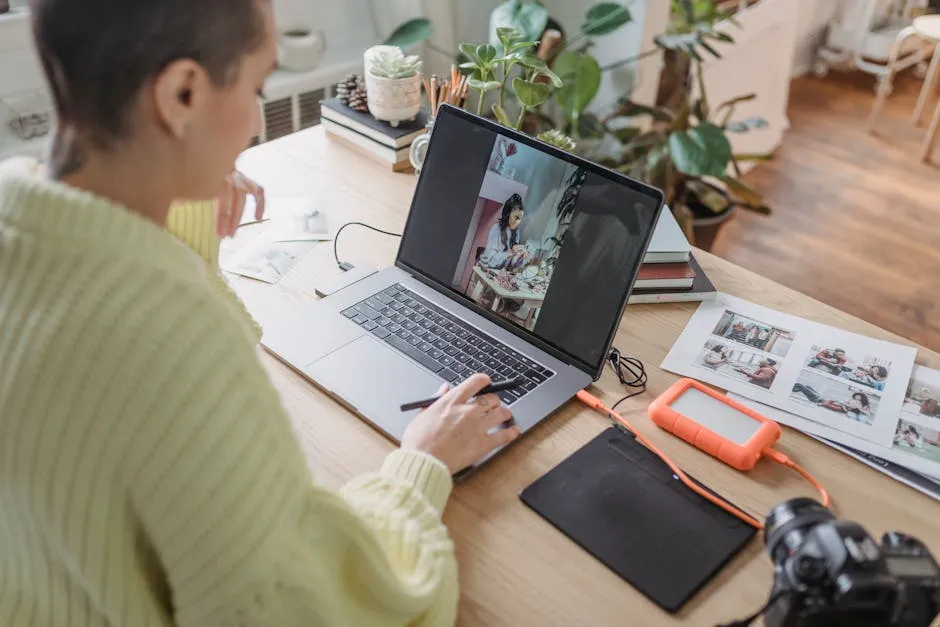

Using a laptop can sometimes be a frustrating experience, especially when users accidentally right-click or open windows unintentionally. Fortunately, there are several settings and tips that can help make laptop usage smoother and more efficient.
One of the primary culprits behind accidental clicks is the touchpad sensitivity. Many laptops come with touchpads that are highly responsive, which can lead to unintentional actions. To address this issue, users can adjust their touchpad sensitivity settings. In Windows, this can typically be done through the Control Panel or Settings app, where users can find options to lower the sensitivity or enable features like palm rejection.
Disabling the touchpad while typing is another effective solution. This can prevent accidental clicks caused by resting hands on the touchpad while typing. Most laptops provide a function key to toggle the touchpad on and off. Users should look for a key that features a touchpad icon, often located in the F-row of keys.
For those who prefer using an external mouse, disabling the touchpad can enhance overall user experience. In the same settings menu, users can find options to disable the touchpad when an external mouse is connected. This can eliminate the chances of unintentional clicks altogether.
Another useful tip is to customize the touchpad gestures and settings. Many laptops allow users to modify gestures for actions like scrolling or zooming. Reducing the number of gestures or disabling them altogether can significantly decrease the likelihood of accidental clicks.
For MacBook users, adjusting the trackpad settings is similarly straightforward. The System Preferences menu allows users to customize sensitivity and other features. Enabling "Tap to Click" can reduce the need for firm clicks, which may help minimize accidental actions.
Additionally, users can benefit from practicing proper hand placement. Keeping fingers off the touchpad when not in use can prevent accidental clicks. For those who find it difficult to avoid the touchpad, using an external mouse can be a practical alternative.
Software solutions also exist for users who find their laptops prone to accidental clicks. Applications like Touchpad Blocker can help prevent unintentional actions by temporarily disabling the touchpad when typing. This can be particularly beneficial for users who do a lot of typing and frequently encounter issues with accidental clicks.
Regularly updating drivers can also improve touchpad performance. Outdated drivers may cause sensitivity issues or glitches that lead to unintended clicks. Users should regularly check for updates through their laptop manufacturer’s website or use built-in update utilities.
Lastly, users should consider cleaning their touchpad. Dirt and grime can cause erratic touchpad behavior, leading to unintentional clicks. A simple cleaning routine can improve responsiveness and overall performance.
Implementing these tips can significantly reduce the number of unintentional right-clicks and window openings, enhancing the overall laptop experience. By adjusting touchpad settings, disabling the touchpad while typing, and practicing mindful hand placement, users can enjoy a smoother, more efficient workflow.
As technology continues to advance, manufacturers are also working on improving touchpad functionality. Future laptops may include smarter touchpad technology that adapts to user behavior, further reducing accidental clicks. Until then, users can take these proactive steps to enhance their daily laptop interactions.